 PhotoWipe
Manual vs extension
How to Delete All Google Photos at Once: Manual vs One-Click
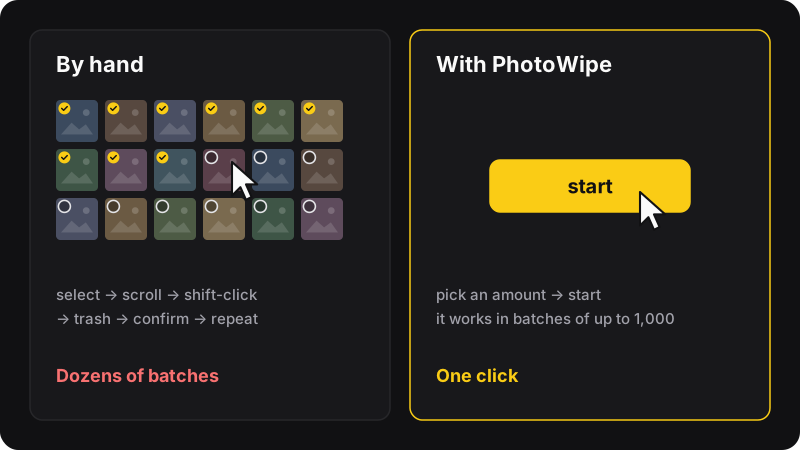
Google Photos has no “Delete all” button. On a computer, click the first photo, hold Shift and click the last one to select a range, move it to the trash, and repeat until the library is empty. Or let a free extension like PhotoWipe do the selecting for you in batches of up to 1,000. Either way, your photos go to the trash first: they’re only gone for good when you empty it, or after 30 days.
Before you start: 3 things to check
Deleting a whole Google Photos library is easy to undo for 30 days, and impossible to undo after that. Take two minutes to check these first.
- Deleting syncs everywhere. According to Google, items you delete from Google Photos are also removed from Android phones, iPhones and iPads that have Google Photos installed with backup turned on, and from your albums and shared albums. They are not removed from Google Drive, Gmail, Blogger or YouTube.
- Keep a copy if you might need one. Use Google Takeout, select only Google Photos, and download the archive. For a big library this can take hours to prepare, so do it before you delete anything.
- Want to keep the photos on your phone? Turn off backup on the phone first. The full procedure is in our guide on deleting Google Photos but keeping them on your phone.
Method 1: delete all Google Photos by hand (computer)
This works in any browser and needs nothing installed. It’s fine for a few hundred photos. For tens of thousands, plan for a long session.
- Go to photos.google.com and sign in. Check the profile picture in the top-right corner: you want to be in the right Google account.
- Hover over the most recent photo and click the small check circle in its top-left corner. The photo is now selected.
- Scroll down as far as you want to go, hold Shift, and click the check circle of the last photo. Everything in between gets selected. You can also click the check mark next to a date heading to select that whole day.
- Click the trash icon at the top right, then confirm Move to trash.
- Wait until Google confirms the move at the bottom of the screen, then repeat from step 2 with the next batch.
- When the library is empty, open Trash in the left menu and click Empty trash to delete everything for good.
Tip: keep batches reasonable
Very large selections make the page slow, and if you scroll too far the selection can be lost. A few hundred photos per batch is a comfortable size. It’s also why PhotoWipe caps each batch at 1,000.
How long does the manual method take?
It depends on your speed and connection, but every batch means scrolling, Shift-clicking, confirming and waiting. If one batch of 300 photos takes you about two minutes, 10,000 photos is around 34 batches, so more than an hour of clicking. Put in your own numbers with our Google Photos deletion time calculator.
Can you do it on a phone?
Yes, but it’s the slowest option. In the Google Photos app, touch and hold a photo, then drag your finger across the others to extend the selection, and tap Trash. Note that on Android, Google says deleting from the app also deletes the copy on the device. For a full library, a computer is much faster.
Method 2: delete all Google Photos in one click with PhotoWipe
PhotoWipe is a free Chrome extension that does exactly what you would do by hand: it selects photos, clicks Google’s own trash button and confirms, batch after batch. You pick the amount and watch it run.
- Install PhotoWipe from the Chrome Web Store (Chrome on a computer).
- Click the PhotoWipe icon in your toolbar. Choose delete, pick an amount (100, 500, 1,000, all, or type your own number), and choose library or archive.
- Click start. PhotoWipe opens Google Photos and first shows you which Google account it is about to clean. If it’s the wrong one, switch account before going further.
- Confirm. PhotoWipe selects the most recent photos first, in batches of up to 1,000, and moves each batch to the trash. A live counter shows progress. Keep the tab open, don’t click on the page, and press stop whenever you want.
- When it’s done, click open trash and then Google’s Empty trash button to delete for good.
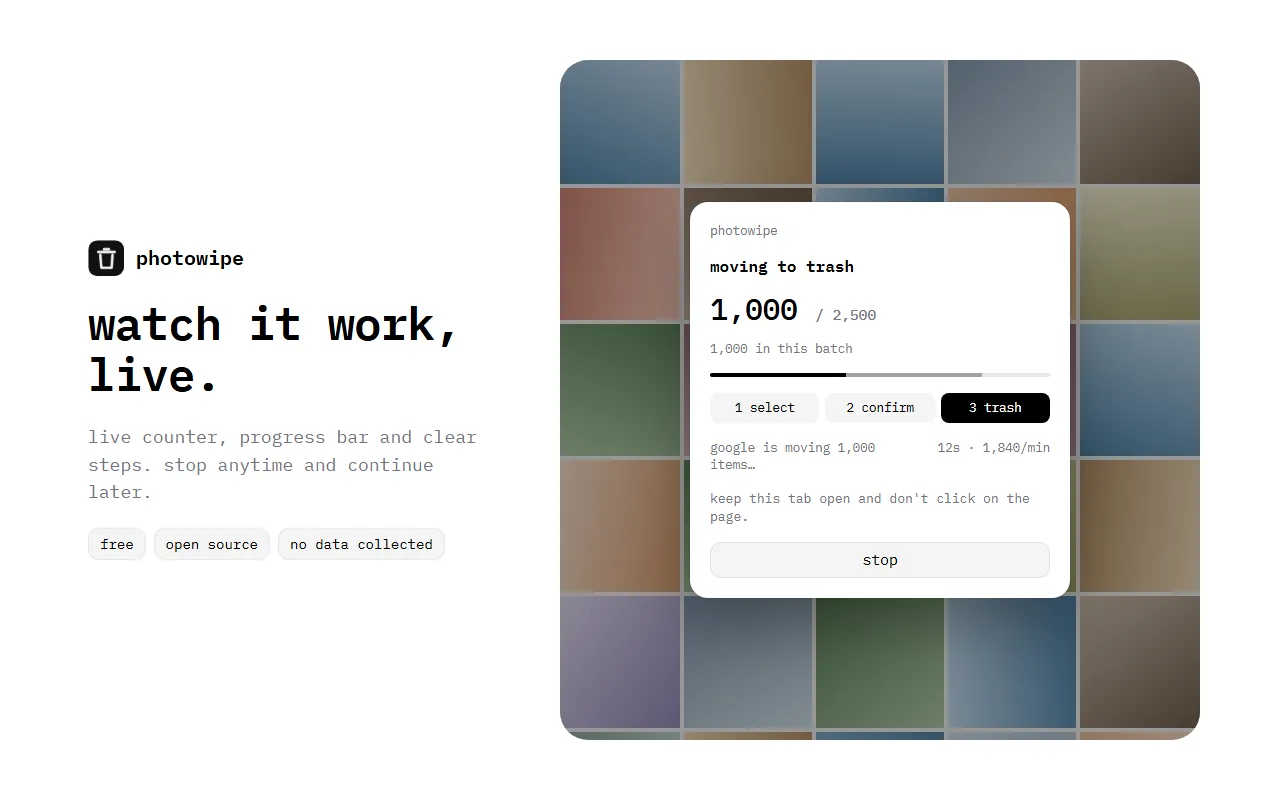
PhotoWipe never empties the trash for you. That’s on purpose: you keep 30 days to change your mind, and its restore mode can bring everything back in bulk.
Manual vs PhotoWipe at a glance
| By hand | PhotoWipe | |
|---|---|---|
| Price | Free | Free |
| Install needed | No | Chrome extension |
| Your effort | Every batch, by hand | One click, then wait |
| Works on a phone | Yes (slow) | No, computer only |
| Bulk restore from trash | Shift-click in trash | Yes, same one-click flow |
| Permanent deletion | Empty trash yourself | Empty trash yourself |
If you have fewer than a few hundred photos, do it by hand. Past that, an extension saves real time. We compare PhotoWipe with the other tools in best tools to bulk delete Google Photos.
Don’t forget to empty the trash
Moving photos to the trash isn’t the end. Until the trash is emptied, or 30 days pass, the photos can still be restored. To delete them now: open photos.google.com/trash and click Empty trash. Our guide on how to empty the Google Photos trash covers Android and iPhone too.
Common problems
“Delete permanently?” appears instead of “Move to trash”
Google shows this when your trash is full. You can accept it, but those items will skip the trash and can’t be restored. If you want the safety net, empty the trash first, then continue.
Deleted photos come back
A phone with backup turned on can upload them again. Turn off backup on every device signed in to the account before you start, as explained in our keep-on-phone guide.
Some photos are left over
Check the Archive (archived photos don’t show in the main view, see how to delete archived photos), your Locked Folder, and shared albums: photos added by other people belong to their accounts, not yours.