 PhotoWipe
How-to
How to Restore All Google Photos From the Trash at Once
Open the trash at photos.google.com/trash, click the check circle on the first item, hold Shift and click the last one, then click Restore. Repeat until the trash is empty. There’s no “Restore all” button, so for thousands of items an extension like PhotoWipe can do the batches for you. It only works within 30 days of deleting.
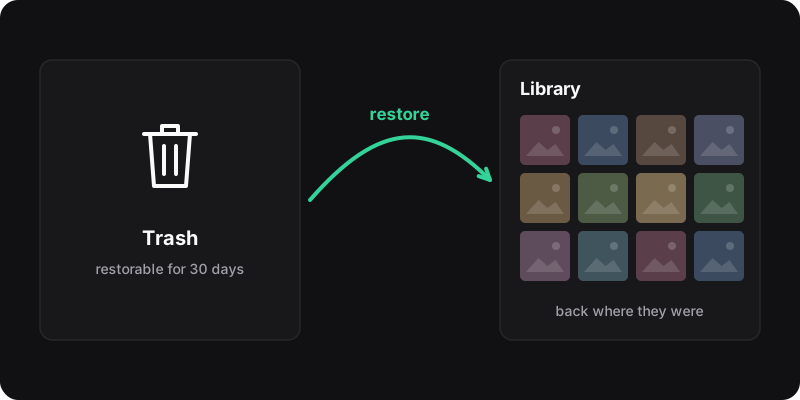
First: check the 30-day deadline
Google keeps deleted photos and videos in the trash for 30 days, then deletes them permanently. Once that happens, or once someone clicks Empty trash, Google says the items can’t be restored. So if you deleted a lot by mistake, restore now and sort things out later.
Also, don’t empty the trash “to clean up” while you’re still restoring. It deletes everything that’s left in it.
Restore everything from the trash on a computer
- Go to photos.google.com/trash (or click Trash in the left menu).
- Hover over the first item and click its check circle.
- Scroll down, hold Shift, and click the check circle on the last item you can reach. Everything in between is selected.
- Click Restore at the top right.
- Wait for Google to confirm, then repeat with the next batch until the trash is empty.
Big trash? Go in chunks
With thousands of items, select a few hundred at a time. Huge selections make the page lag, and if the browser stalls you lose the selection and have to start that batch again.
Restore from the trash on Android or iPhone
- Open the Google Photos app and tap Collections → Trash.
- Touch and hold the first item, then drag your finger across the others to select them.
- Tap Restore.
On Android, Google notes that items deleted from the device without being backed up also sit in this trash for 30 days, so you can restore those the same way.
Restore all Google Photos with PhotoWipe
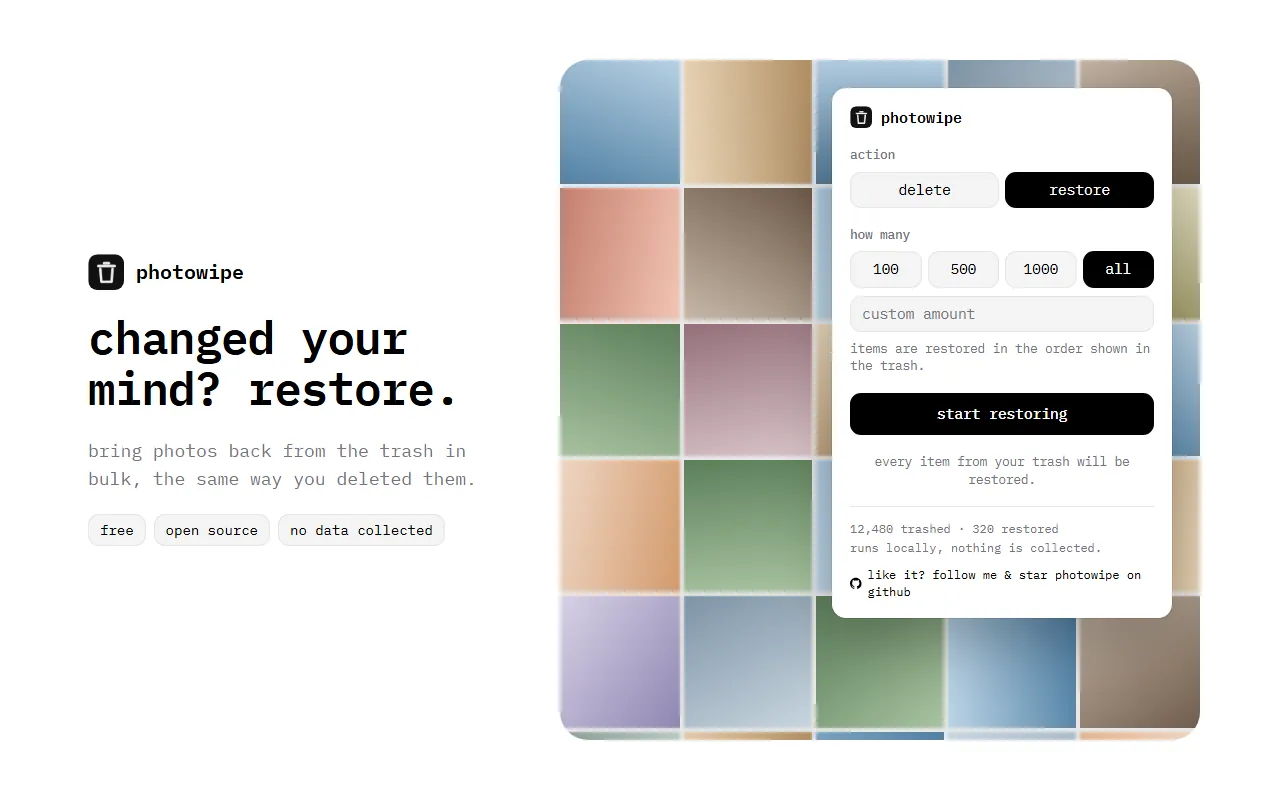
PhotoWipe has a restore mode that works exactly like its delete mode, just in the other direction.
- Click the PhotoWipe icon in Chrome.
- Choose restore, then an amount: all to empty the trash back into your library, or a number.
- Press start restoring. PhotoWipe opens your Google Photos trash and shows the account it will work on. Confirm.
- It selects items in the order shown in the trash, clicks Google’s Restore button, waits for Google to finish, and moves on to the next batch. Keep the tab open until it says done.
Where do restored photos go?
Restored items go back where they were: your main Photos view, with their original dates, plus any albums they belonged to. If backup is on, they reappear on your synced devices too.
Can’t find the photos in the trash?
If the trash is empty or your photos aren’t there, check these before you give up:
- Archive. Archived photos are hidden from the main view but not deleted. Open Archive in the menu.
- Locked Folder. Items there don’t show up in the main view or search.
- Another Google account. Check the profile picture: many people back up to a second account without noticing.
- Your phone’s gallery. Samsung Gallery, Apple Photos and others have their own “Recently deleted” folders, separate from Google Photos.
- Google Takeout or old downloads. If you exported your library before deleting, your copy is in that archive.
If the 30 days have passed or the trash was emptied, Google says the items can’t be restored. Next time, keep a copy with Google Takeout before a big cleanup, as we suggest in how to delete all Google Photos.
How to avoid this next time
- Delete in stages and check the trash before emptying it. See how the Google Photos trash works.
- If you only want photos gone from the cloud, turn off backup on your phone first.
- Use a tool that stops at the trash. PhotoWipe never empties the trash itself, so you always have 30 days to undo.