 PhotoWipe
How-to
How to Delete Google Photos but Keep Them on Your Phone
Turn off backup in the Google Photos app on every phone signed in to your account, then delete the photos from photos.google.com on a computer. With backup off, the copies stored on your phone stay where they are. On Android there’s also a one-tap option, Undo backup, that removes everything this phone uploaded while keeping it on the device.
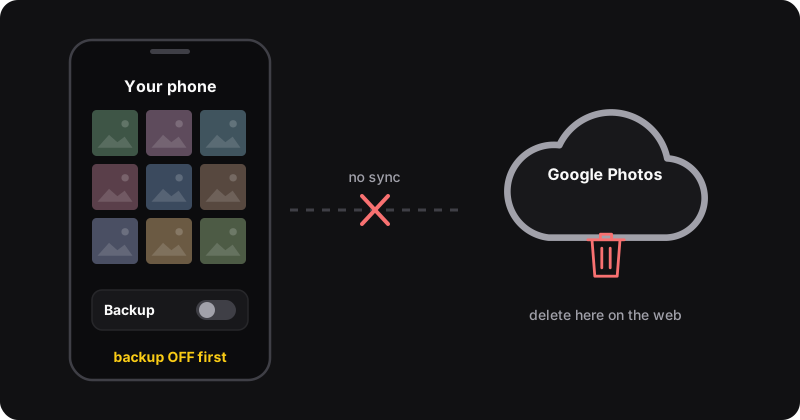
Why deleting in Google Photos can wipe your phone
Google Photos keeps your phone and your cloud library in sync. Google’s help page is clear about what that means:
- Deleting photos from the Google Photos app on Android “deletes the same items from your device”: both the cloud copy and the phone copy go.
- Items you delete from Google Photos are also removed from Android phones, iPhones and iPads that have Google Photos installed with backup turned on.
- Items can also be removed from local storage when the files were downloaded to an iPhone or iPad, and on some devices with Android 11 or later.
So the order of operations matters: turn off backup first, delete second.
Make a copy first
Before any big deletion, copy your phone’s photos to a computer or an external drive. Sync behavior can differ between phones and app versions, and a local copy turns a mistake into a non-event. Test the whole procedure on 2 or 3 photos before doing your whole library.
The safe method, step by step (Android and iPhone)
- Turn off backup on your phone. In the Google Photos app, tap your profile picture, then Photos settings → Backup, and turn backup off.
- Do the same on every other device signed in to the same Google account: old phones, tablets, a partner’s phone with partner sharing… If any device still has backup on, the photos can be uploaded again.
- On a computer, go to photos.google.com and delete the photos you want gone from the cloud. Select a range with Shift-click (see how to select many photos), or delete everything with the methods in how to delete all Google Photos.
- On your phone, wait a few minutes on Wi-Fi, then close and reopen the Google Photos app.
- Check. Google notes that deleted photos may still appear in the app’s Photos view: those are now local copies only. Open one, tap ⋮ More, and scroll to Details to see its backup status.
- Leave backup off. If you turn it back on, Google warns that the deleted photos may be backed up again, and that the device copy may be deleted once backup is re-enabled.
Android shortcut: “Undo backup”
If you want to remove everything this phone uploaded from Google Photos while keeping it all on the phone, Android has a built-in option:
- Open Google Photos and tap your profile picture, then Photos settings → Backup.
- Scroll down and tap Undo backup.
- Check the box “I understand my photos and videos from this device will be deleted from Google Photos”.
- Tap Delete Google Photos backup. Backup turns off automatically on that device.
According to Google, this also removes those items from your albums, shared albums, search results and memories, and it includes Locked Folder and device folder items. If another device signed in to the same account still has backup on, the photos can be uploaded again.
Notes for iPhone users
On an iPhone, your photos normally live in Apple’s Photos app (and maybe iCloud). Google Photos uploads a copy of them. The same rule applies: turn off backup in the Google Photos app first, then delete on the web. Then check that your photos are still in Apple Photos before you empty anything. If you also use iCloud Photos, remember that deleting in Apple Photos syncs to iCloud, which is a separate system from Google.
“I just want to free up space on my phone”
That’s the opposite problem, and Google Photos has a tool for it. In the app, select photos that are already backed up, tap ⋮ More → Delete from device. The phone copy is removed and the Google Photos copy stays. Don’t confuse the two buttons: Trash deletes from Google Photos too, while Delete from device only removes the local copy.
Deleting thousands of photos from the cloud
Step 3 is where it gets long if your library is big. PhotoWipe runs on photos.google.com in Chrome on a computer. It never touches your phone directly: it clicks Google’s own trash button in batches, so the sync rules above still apply. Turn backup off first, then let it run.
Quick checklist
- Copy your phone photos to a computer or drive
- Backup off on every device signed in to the account
- Test with 2–3 photos, check they’re still on the phone
- Delete the rest on photos.google.com
- Empty the trash only when you’re sure (how)
- Leave backup off afterwards