 PhotoWipe
How-to
How to Select All Photos in Google Photos
Google Photos has no “Select all” button, and Ctrl+A does nothing. The fastest way on a computer is a range selection: click the check circle on the first photo, hold Shift, then click the last photo. Every photo in between is selected. On a phone, touch and hold one photo, then drag your finger across the others.
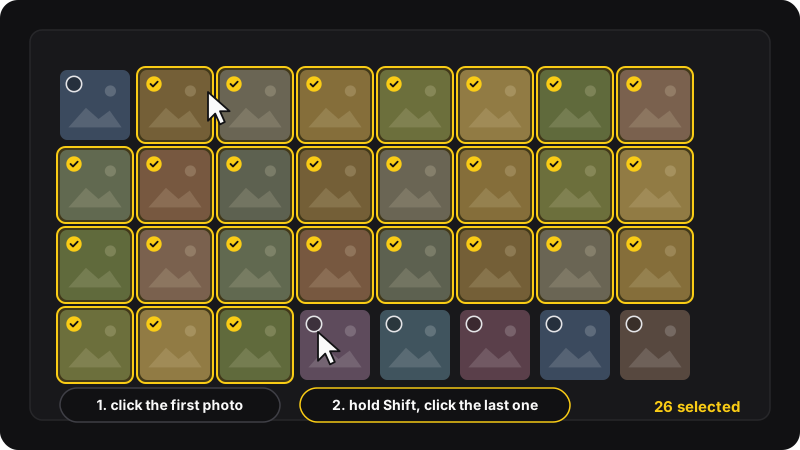
Select many photos on a computer (Shift-click)
This works on photos.google.com in Chrome, Edge, Firefox or Safari.
- Hover over the first photo you want. A small check circle appears in its top-left corner. Click it.
- Scroll down to the last photo you want. Don’t click anywhere else on the way.
- Hold Shift and hover over that last photo: Google Photos highlights the whole range. Click its check circle.
- The counter at the top shows how many items are selected. You can now trash, archive, download, or add them to an album with the buttons at the top right.
Select a whole day in one click
Hover over a date heading in the main Photos view: a check mark appears next to it. Click it to select every photo from that day. Combine it with Shift-click to grab several days quickly.
Deselect a few photos
Click the check circle of any selected photo to remove it from the selection. To clear everything, click the × next to the counter at the top left.
Select only some kinds of photos
“Select all” usually means “select all of this”. Narrow the view first, then Shift-click inside it.
- Screenshots, receipts, documents: type the word in the search bar (for example screenshots). Google Photos groups many of these automatically.
- One album: open the album, then use Shift-click there. Removing photos from an album is different from deleting them: check which button you press.
- A date range: scroll the main view to the start date with the scrollbar on the right, click the first photo, then Shift-click the last one of the range.
- Archived photos: they don’t appear in the main view. Open Archive in the left menu and select there. See how to delete archived photos.
- The trash: same Shift-click method, handy when you want to restore everything from the trash.
Select many photos on Android or iPhone
- Open the Google Photos app.
- Touch and hold the first photo until a check mark appears.
- Without lifting your finger, drag across or down the grid. Every photo you pass over gets selected, and the grid scrolls when you reach the edge of the screen.
- You can also tap the circle next to a date to select that whole day.
Dragging works, but for thousands of photos it’s tiring and easy to slip. If the goal is deleting a large part of your library, a computer is much faster.
How many photos can you select at once?
Google doesn’t publish a hard limit, but very large selections get slow, and scrolling far down the page with thousands of photos selected can make the browser lag or lose the selection. In practice, work in batches of a few hundred to around a thousand. PhotoWipe, for example, works in batches of up to 1,000 and starts a new batch once Google has finished the previous one.
Why doesn’t Ctrl+A work?
Google Photos loads your library little by little as you scroll, so the page never “contains” all your photos at once. A select-all shortcut would only grab what’s loaded, which is confusing, so Google doesn’t offer one. That’s also why tools that bulk-delete Google Photos all work the same way: scroll, select a batch, act, and repeat.
What you can do with a selection
| Action | Where | What happens |
|---|---|---|
| Move to trash | Trash icon, top right | Removed from your library and synced devices. Restorable for 30 days. |
| Archive | Three-dot menu | Hidden from the main view, still in albums and search, and still uses storage. |
| Download | Three-dot menu | Large selections download as a ZIP file. |
| Add to album | “+” icon | Copies the selection into an album. Nothing is deleted. |
If you’re selecting everything to delete it, read how to delete all Google Photos at once first: it covers what syncs to your phone and how to keep a backup.
Skip the selecting entirely
If what you really want is to clear hundreds or thousands of photos, PhotoWipe does the selecting for you. Choose an amount (or “all”), choose library or archive, and press start. It selects batch after batch, uses Google’s own trash button, and shows a live counter. Nothing is permanently deleted until you empty the trash yourself.