 PhotoWipe
How-to
How to Delete Archived Photos in Google Photos
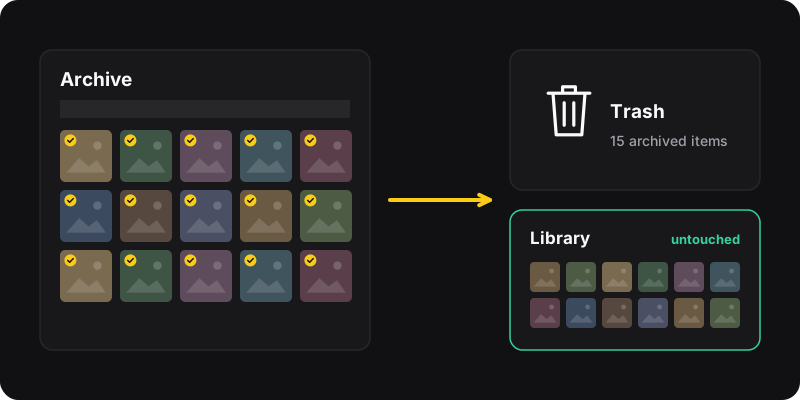
Archived photos are hidden from your main Photos view, but they’re not deleted and they still use storage. To delete them, open photos.google.com/archive (or Collections → Archive in the app), select the photos with Shift-click, and move them to the trash. Your main library isn’t affected.
What the Google Photos archive actually is
Archive is a “hide from the main view” feature, not a delete. Google describes it like this: when you move photos to archive, you can still find them in any albums they were added to, in search results, and in folders on your device.
That has two consequences people often miss:
- Archived photos still count toward your storage. Archiving doesn’t free up a single megabyte.
- Deleting “everything” from the main view leaves the archive behind. If you cleared your library and your storage barely moved, the archive is a likely culprit.
Where to find your archive
- Computer: go to photos.google.com/archive, or click Archive in the left menu on photos.google.com.
- Android and iPhone: open Google Photos, tap Collections, then Archive.
Lots of people find screenshots and documents there that they never archived themselves: Google Photos can suggest archiving them, and it’s easy to tap “accept” without thinking.
Delete archived photos on a computer
- Open photos.google.com/archive.
- Click the check circle on the first photo.
- Scroll down, hold Shift and click the last photo to select everything in between. (More selection tricks in how to select all photos in Google Photos.)
- Click the trash icon at the top right, then Move to trash.
- Repeat until the archive is empty, then empty the trash if you want the space back now.
Delete archived photos on Android or iPhone
- Open Google Photos and go to Collections → Archive.
- Touch and hold a photo, then drag across the others to select them.
- Tap Trash, or Delete, depending on your app version, and confirm.
Same sync rules as the main library
Deleting an archived photo deletes it everywhere it’s synced, including phones with backup turned on. If you want to keep the phone copies, follow delete Google Photos but keep them on your phone first.
Clear the whole archive with PhotoWipe
PhotoWipe has a “from” setting with two choices: library and archive. Pick archive and it works only there:
- Click the PhotoWipe icon, choose delete and an amount (or all).
- Under from, choose archive.
- Press start. PhotoWipe opens your Google Photos archive, shows which account it will clean, and moves the archived items to the trash in batches, most recent first.
- When it’s done, open the trash and empty it if you want the storage back right away.
Your main library isn’t touched in archive mode. It’s a quick way to clean up those thousands of auto-archived screenshots.
Not sure? Unarchive instead
If you want to look through archived photos before deciding, select them and choose Unarchive from the ⋮ menu. They go back to the main Photos view, where they’re easier to browse. You can always archive or delete them later.
Quick answers
Will deleting archived photos remove them from my albums?
Yes. A deleted photo is removed from every album and shared album it was in, whether it was archived or not.
Will it free up storage?
Yes, once the photos are permanently deleted (trash emptied, or after 30 days), unless they’re photos backed up in High quality/Storage saver before June 1, 2021, which never counted toward storage. More in Google Photos storage full: 5 fixes.
Is the archive the same as the Locked Folder?
No. The Locked Folder is a separate, protected space. Its items don’t appear in the archive, search or albums. PhotoWipe doesn’t touch the Locked Folder.