 PhotoWipe
Comparison
Best Tools to Bulk Delete Google Photos in 2026
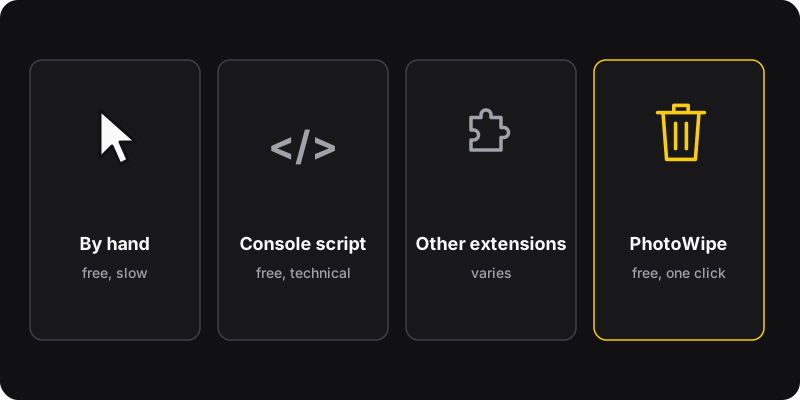
For a few hundred photos, Google Photos’ own Shift-click selection is enough and needs nothing installed. For thousands, a free extension saves hours: PhotoWipe (ours), “Delete all Google Photos (One-click)” and the open-source “Bulk Delete for Google Photos” all move photos to the trash in batches. Console scripts work too, if you’re comfortable pasting code into your browser.
Disclosure
We make PhotoWipe, one of the tools below. We’ve tried to be fair: every tool here works, and the right one depends on how many photos you have and what you’re comfortable installing. Details about other tools come from their own store pages and READMEs as of October 2026. Check them again before installing, since things change.
Quick comparison
| Option | Type | Price | Best for |
|---|---|---|---|
| Google Photos Shift-click | Built in | Free | Up to a few hundred photos |
| PhotoWipe (ours) | Chrome extension, open source | Free | Big libraries, archive, bulk restore |
| Delete all Google Photos (One-click) | Chrome extension | Free (per its listing) | Big libraries, up to 10,000 per run |
| Bulk Delete for Google Photos | Extension + Firefox userscript, open source | Free | Chrome, Edge, Brave and Firefox users |
| Console scripts (GitHub) | Code you paste in DevTools | Free | Developers who want no install |
1. Google Photos’ own Shift-click (no install)
Click the first photo, hold Shift, click the last one, then trash. It’s free, official and works in every browser. The catch is scale: you repeat it for every batch, and huge selections get slow. Full method in how to select all photos in Google Photos.
- Nothing to install, no third party
- Works on any computer and (slowly) on phones
- Manual for every batch: an hour or more for big libraries
2. PhotoWipe (our extension)
PhotoWipe is a free Chrome extension. You choose delete or restore, an amount (100, 500, 1,000, all, or any number), and library or archive. It opens Google Photos, shows the account it’s about to clean, and then selects and trashes in batches of up to 1,000 with a live counter.
- Free, open source, no account
- Only asks for the
storagepermission and runs only on photos.google.com when you launch it - Bulk restore from the trash and archive cleanup, not just delete
- Stops at the trash: you keep 30 days to change your mind
- Chrome on a computer only (no phone app)
- The tab has to stay open while it runs
- Deletes most recent first. It can’t pick “only videos” or a date range
3. Delete all Google Photos (One-click)
A Chrome extension whose store listing says it lets you enter how many photos to delete, with 10,000 as the default and the maximum per run. You can run it again for bigger libraries. Like PhotoWipe, it moves photos to the trash, and you empty the trash yourself afterwards. Its listing presents it as free.
- Simple: one number, one button
- 10,000 per run maximum, according to its listing
4. Bulk Delete for Google Photos (open source)
An open-source project on GitHub by Jason Krijgsman. Its README describes an extension for Chrome, Edge and Brave plus a userscript for Firefox, moving “about 750 a minute”, with no daily limit and no tracking. You can also paste its script into the browser console.
- Open source, also covers Firefox via a userscript
- Setup is more technical if you go the userscript or console route
5. Console scripts on GitHub
Projects like Google-Photos-Deletion-Script and google-photos-delete-tool give you JavaScript to paste into the DevTools console on photos.google.com (Ctrl+Shift+J). They work the same way as the extensions, scrolling, selecting and trashing, with nothing to install.
Be careful with console scripts
Pasting code into the console of a page where you’re logged in gives that code full access to your account on that page. Only run scripts you’ve read and understood, from a source you trust. Never paste code someone sends you in a message.
How to choose
- Under ~500 photos: do it by hand. No tool needed.
- Thousands of photos on Chrome: any of the extensions above. Pick PhotoWipe if you also want bulk restore or archive cleanup.
- Firefox: the Bulk Delete for Google Photos userscript.
- You don’t install extensions on principle: a console script you’ve read, or the manual method.
Safety checklist for any Google Photos tool
- Check the permissions. A deletion tool only needs access to photos.google.com. Be wary of “read and change all your data on all websites”.
- Check where your data goes. The tool should run in your browser, with no login to a third-party server.
- Prefer trash over permanent deletion. The 30-day trash is your safety net. See how to restore everything from the trash.
- Keep a backup. Export with Google Takeout before a full wipe, as explained in how to delete all Google Photos.
- Turn off phone backup first if you want to keep photos on your phone.