 PhotoWipe
How-to
How to Empty the Google Photos Trash
On a computer, open photos.google.com/trash and click Empty trash, then confirm. In the Android or iPhone app, go to Collections → Trash → ⋮ More → Empty trash → Delete permanently. This deletes everything in the trash for good: it can’t be undone, not even with Google Takeout.
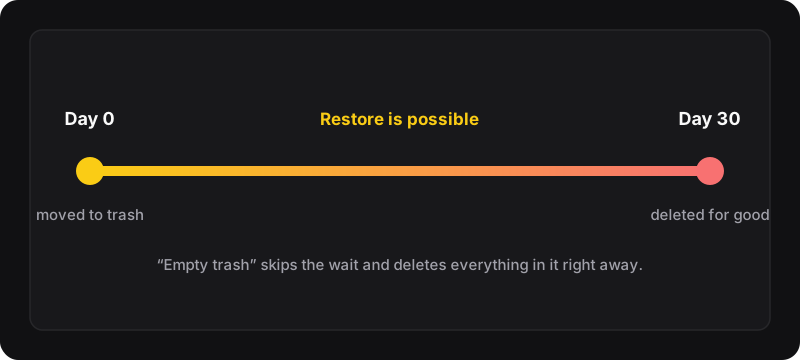
How the Google Photos trash works
When you delete a photo or video, Google Photos doesn’t erase it straight away. It goes to the trash, where, according to Google, it stays for 30 days before being permanently deleted. During that time you can restore it. Emptying the trash simply skips the wait.
Two things to know before you empty it:
- It’s final. Google says permanently deleted items can’t be restored, and Google Takeout can’t recover them either.
- It’s everything. “Empty trash” deletes every item in the trash, not just the ones you deleted today. If you only want some items gone, use “Delete permanently” on a selection instead (see below).
Empty the trash on a computer
- Go to photos.google.com and sign in to the right account.
- Click Trash in the left menu. If you don’t see the menu, click the ☰ icon at the top left, or go straight to photos.google.com/trash.
- At the top, click Empty trash.
- Confirm. The trash is now empty and the items are gone for good.
Empty the trash on Android
- Open the Google Photos app.
- At the bottom, tap Collections, then Trash.
- Tap ⋮ More, then Empty trash.
- Tap Delete permanently to confirm.
Memory cards
Google notes that deleted photos and videos might stay on a removable SD card. To remove those copies, use your phone’s own gallery app.
Empty the trash on iPhone or iPad
The steps are the same as on Android: open the Google Photos app, go to Collections → Trash, tap ⋮ More → Empty trash and confirm. This empties the Google Photos trash only. Apple’s Photos app has its own “Recently Deleted” album, which you manage separately.
Permanently delete only some items
- Open the trash (computer or app).
- Select the items: click their check circles, or use Shift-click for a range (see how to select many photos at once).
- Click Delete permanently (on a phone: Trash → Delete permanently).
“Your trash is full”: what it means
If you get a Delete permanently prompt when you move photos to the trash, Google says your trash is full. You can accept it, but those items will skip the trash and can’t be restored. If you want to keep the 30-day safety net, empty the trash first, then delete the rest.
This happens a lot when you clear a big library in one go. The easy routine is: move a big chunk to the trash, empty it, then continue.
Emptied the trash but storage didn’t go down?
- Give it time. The storage meter in your Google Account doesn’t always update instantly. Check again later at one.google.com/storage.
- Some photos were “free”. Google says photos and videos backed up in High quality (now called Storage saver) or Express before June 1, 2021 don’t count toward your storage. Deleting them doesn’t free any space.
- The space is used elsewhere. Your 15 GB is shared between Google Photos, Gmail and Google Drive. See Google Photos storage full: 5 fixes.
Changed your mind before emptying?
As long as the trash isn’t emptied and 30 days haven’t passed, everything can come back. Select the items in the trash and click Restore. For a whole trash full of photos, follow our guide to restore all Google Photos from the trash at once.
Where PhotoWipe fits in
PhotoWipe handles the slow part: moving hundreds or thousands of photos to the trash, or restoring them, in batches. It never empties the trash for you. When it finishes, it gives you an open trash button, and the final Empty trash click is yours. That way nothing is deleted for good without you deciding it.