 PhotoWipe
Fix
Google Photos Storage Full? 5 Fixes That Actually Free Up Space
Your free 15 GB is shared between Google Photos, Gmail and Google Drive, so when it fills up, backups stop and Gmail can stop receiving mail. The fastest fixes: delete what you don’t need in Google Photos in bulk and empty the trash, convert existing photos to Storage saver, and clean big Gmail attachments and Drive files. Check what’s using your space first at one.google.com/storage.
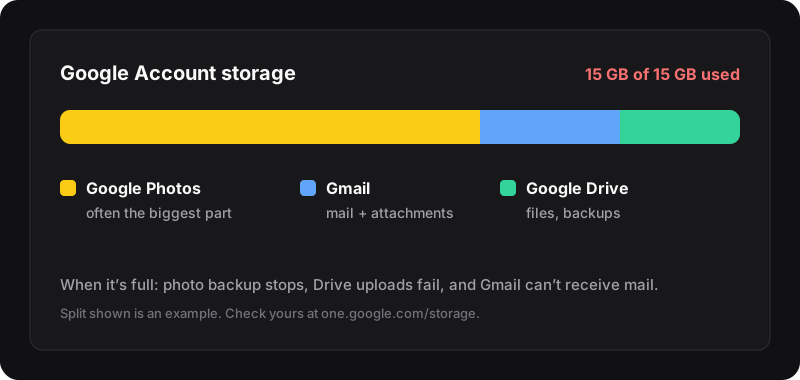
What happens when Google storage is full
Every Google Account gets 15 GB of storage, shared across Google Photos, Gmail and Google Drive. When it’s full:
- Google Photos stops backing up new photos and videos.
- You can’t upload or create new files in Google Drive.
- Gmail can stop sending and receiving email. This is often the first thing people notice.
Google also warns that if you stay over your storage limit for a long time (two years), the content in the affected products may be deleted. So it’s worth fixing, not just ignoring the warning.
Step 0: see what’s actually using your space
Go to one.google.com/storage. You’ll see how much Photos, Gmail and Drive each use. Start with the biggest one. If Google Photos is most of it (it often is), fixes 1 to 3 matter most for you.
Fix 1: delete what you don’t need in Google Photos, in bulk
Old screenshots, duplicate bursts, blurry shots and long videos add up fast. Two ways to tackle them:
- Google’s own cleanup page. On photos.google.com, open Settings → Manage storage. Google shows categories it found, such as large photos and videos, screenshots or blurry photos. Review a category, select, delete.
- Big ranges at once. If you want to remove a whole period (or the whole library), use Shift-click range selection, explained in how to select all photos in Google Photos.
Before deleting, remember that deletion syncs to phones with backup on. If you want to keep the photos on your phone, read delete Google Photos but keep them on your phone first.
Fix 2: empty the trash (and the archive)
Deleting a photo only moves it to the trash, where it stays for 30 days. The space is fully released once items are permanently deleted, so if you need room now, open photos.google.com/trash and click Empty trash. Steps for every device in how to empty the Google Photos trash.
Also look in the Archive. Archived photos are hidden from the main view but still count toward storage. See how to delete archived photos.
Fix 3: convert your existing photos to Storage saver
If your photos are stored in Original quality, Google can compress the ones you already have. Google calls this Recover storage:
- On a computer, go to photos.google.com.
- Click Settings → Manage storage.
- Under “Recover storage”, click Convert existing photos & videos to Storage saver.
What to expect, according to Google: photos larger than 16 MP are resized to 16 MP, videos above 1080p are resized to 1080p, and some files (like certain portrait-mode photos) can’t be compressed. You can only recover storage once a day, and it doesn’t change the quality of future uploads. This is a one-way trip for those files, so keep originals elsewhere if you care about full resolution.
Fix 4: clean up Gmail and Google Drive
- Gmail: search
has:attachment larger:10Mto find heavy emails, delete what you don’t need, then empty Gmail’s Trash and check Spam. - Drive: open drive.google.com/drive/quota to list files by size. Old backups, videos and ZIP files are usually the big ones. Empty Drive’s trash afterwards: it counts toward storage.
Fix 5: stop the problem from coming back
- Back up in Storage saver. In photos.google.com/settings, choose Storage saver for future uploads.
- Don’t back up every folder. In the app, check Photos settings → Backup → Back up device folders and turn off folders you don’t need in the cloud, like WhatsApp images or screenshots.
- Do a monthly sweep. Ten minutes in Manage storage beats a full account later.
And if you genuinely need the space, a Google One plan is the honest fix. Nothing wrong with paying for storage you use.
Deleted lots of photos but storage didn’t drop?
- The trash isn’t emptied yet (fix 2).
- The meter hasn’t refreshed: check again later.
- You deleted photos uploaded in High quality before June 1, 2021. Google says those never counted toward storage, so deleting them frees nothing.
- The space is in Gmail or Drive, not Photos (fix 4).
The one-click part
For fix 1 on a big library, PhotoWipe moves photos to the trash in batches of up to 1,000 from your library or your archive, while you do something else. It runs in Chrome on your computer, collects nothing, and leaves the final “Empty trash” click to you. Curious how much time it saves? Try the deletion time calculator.