 AutoListing
Manual vs extension
How to Relist on Facebook Marketplace: By Hand or in One Click
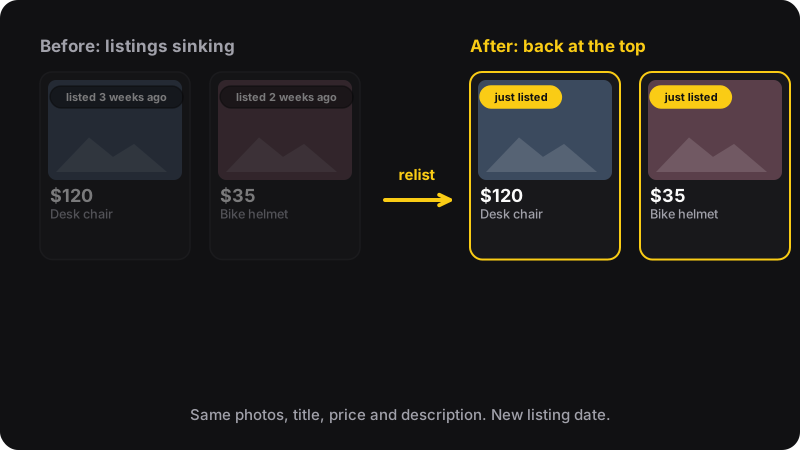
To relist on Facebook Marketplace, you post the item again as a brand-new listing (same photos, title, price and description) and delete the old one. Buyers then see it as just listed. By hand, that’s about five minutes per item. With a free extension like AutoListing, you select your listings and click Relist.
Relist or renew: which one do you need?
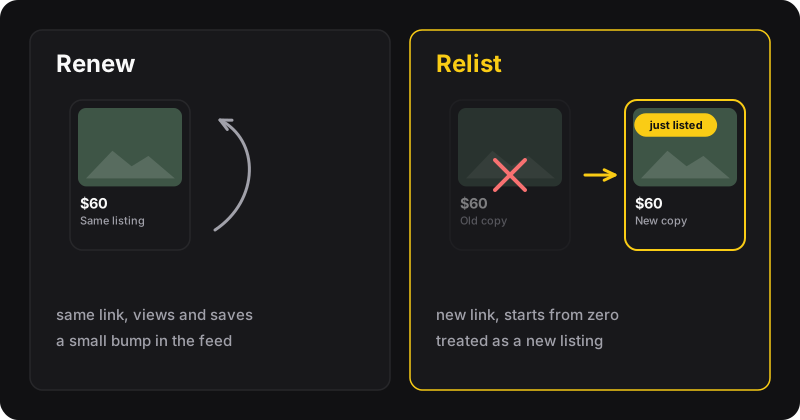
Facebook has a built-in Renew button that bumps an existing listing. Relisting is different: you create a new listing and remove the old one.
- Renew keeps the same listing, link, views and saves. It’s free and quick, but it’s only offered on listings that are about a week old, and its effect fades after a few renewals. Here’s how to renew a Marketplace listing.
- Relist starts from zero: new listing, new date. Sellers use it when renewing stops bringing views.
Method 1: relist a Marketplace item by hand
This works on a computer or in the Facebook app, and it’s free. Do one item at a time so you don’t mix up photos.
- Save the photos. Open the listing and download its photos, or make sure you still have them on your phone. Facebook won’t copy them for you.
- Copy the text. Copy the title, price, description, category and condition into a note.
- Create a new listing. Go to Marketplace, then Create new listing → Item for sale. Add the photos and paste the details. This is a good moment to improve the first photo or the title (see how to write a listing that sells).
- Publish and wait until the new listing is live.
- Delete the old listing. In Marketplace → Selling → Your listings, open the old one, choose Delete, and confirm. Don’t leave both online: duplicate listings for the same item look spammy.
What you lose when you relist
People who saved the old listing won’t see it in their saved items anymore, and old views don’t carry over. Messages already exchanged stay in Messenger. If a buyer was clearly interested, send them the new link.
How long does it take by hand?
Count about 4 to 6 minutes per item once you’re used to it: saving photos, re-uploading, pasting, checking, deleting. For 3 items that’s fine. For a reseller with 40 listings, that’s three or four hours every time you refresh your shop.
Method 2: relist in one click with AutoListing
AutoListing is a Chrome extension that does the same steps for you: it creates a new copy of each selected listing, with the same photos, title, price and description, then removes the old one.
- Install AutoListing from the Chrome Web Store and open Facebook in Chrome on your computer.
- Click the AutoListing icon. It opens in Chrome’s side panel. Click Open Marketplace to go to your selling page.
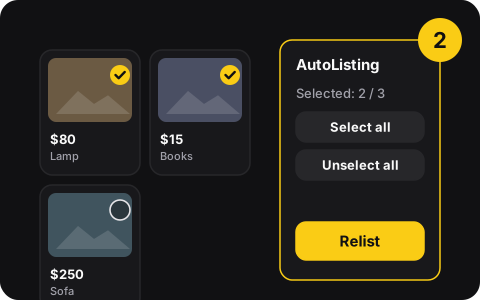
- Tick the listings you want to refresh, or use Select all.
- Click Relist. A progress screen shows while it works, and you can switch tabs in the meantime.
- Check your listings: the selected items now appear as just listed.
AutoListing is free for 5 relists a month with a free account (you sign in with your email, no Facebook password). Unlimited relisting costs $2 a month or $20 a year.
By hand vs AutoListing
| By hand | AutoListing | |
|---|---|---|
| Price | Free | 5 relists/month free, then $2/month |
| Time per item | ~5 minutes | A few seconds of your time |
| Re-upload photos | Yes, yourself | Done for you |
| Chance to improve the listing | Yes, while reposting | Edit before or after |
| Works on phone | Yes | No, Chrome on a computer |
Relist without looking like spam
- Don’t relist daily. Facebook doesn’t publish a limit, but reposting the same item every day is exactly what spam looks like. Once a week or so is a common habit. See how often you can relist.
- Remove the old copy. One item, one live listing.
- Change something when it’s not selling. A clearer first photo or a small price drop often does more than the relist itself.
- Follow Facebook’s Commerce Policies. Relisting doesn’t fix a listing that breaks the rules.