 Free AI Sidebar
How-to
How to Open ChatGPT in a Chrome Sidebar (Free, No API Key)
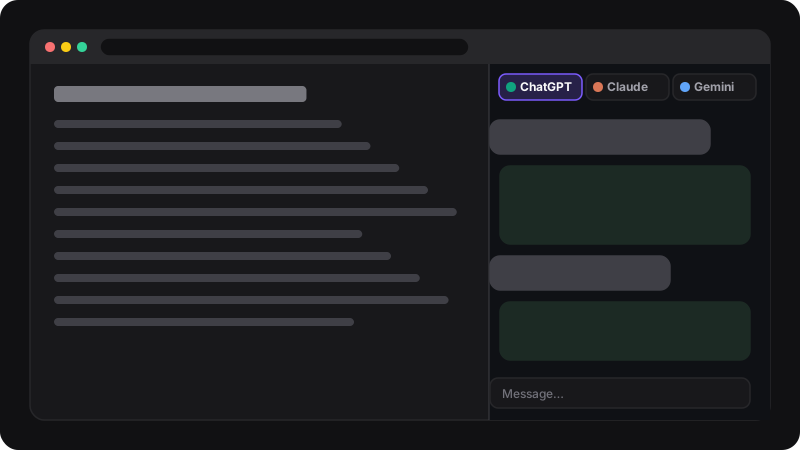
Chrome has a built-in side panel, and an extension can show the real chatgpt.com inside it. Install a sidebar extension such as Free AI Sidebar, click its icon (or press Ctrl+Shift+Z), and sign in to ChatGPT with your own free account. ChatGPT then stays open on the right while you browse. No API key, no subscription.
Why a sidebar beats a separate tab
When ChatGPT lives in another tab, every question means switching, copying, switching back and losing your place. In the side panel, the page and the chat sit next to each other: you read, ask, and keep going. That matters most for:
- reading long articles or documentation and asking about them,
- writing emails or posts with help at hand,
- studying, translating or checking facts while you browse.
Option 1: a pinned tab and a split window (no install)
- Open chatgpt.com in a tab and sign in.
- Right-click the tab and choose Pin, so it’s always there.
- To see it next to a page, drag the tab out into its own window and snap both windows side by side (on Windows: Win+← / →; on macOS, drag a window to the edge or use the green button’s tile options).
It works, but you lose half your screen permanently, and juggling two windows gets old quickly.
Option 2: Chrome’s side panel with an extension
Since Chrome 114, extensions can use Chrome’s side panel, a strip on the right that stays open while you change tabs. A sidebar extension loads ChatGPT there.
- Install Free AI Sidebar from the Chrome Web Store.
- Pin its icon: click the puzzle-piece icon in the toolbar, then the pin next to the extension.
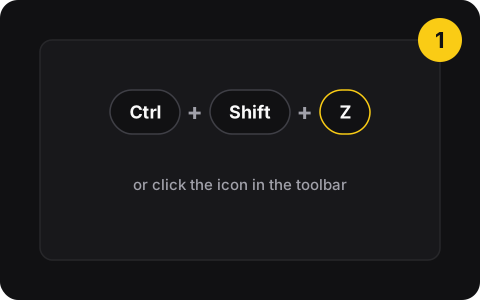
- Click the icon, or press Ctrl+Shift+Z. The side panel opens.
- Choose the ChatGPT tab at the top and sign in with your usual account, or create a free one.
- Drag the panel’s edge to make it wider or narrower.
Because it’s the real chatgpt.com, everything you’re used to works: your history, your custom instructions, and your plan. If you pay for ChatGPT, your paid features are there too. If you don’t, the free plan’s limits apply as usual.
Option 3: ChatGPT’s own apps
OpenAI also offers desktop apps and its own browser features, which change regularly. They’re a good choice if you want everything from OpenAI. A side panel extension is lighter: it lives inside the Chrome you already use and also gives you Claude and Gemini in the same place.
Tips for using ChatGPT in the side panel
- Change the shortcut if Ctrl+Shift+Z clashes with another app: go to
chrome://extensions/shortcuts. - Paste, don’t retype. Select text on the page, copy it, and paste it into the chat with a clear instruction (“explain this like I’m new to the topic”).
- Pick up where you left off. Free AI Sidebar remembers the last conversation open in each AI tab.
- Get a second opinion by switching to Claude or Gemini for the same question. See how to compare their answers.
What about privacy?
With Free AI Sidebar, your conversations go straight between you and OpenAI, exactly as on chatgpt.com. The extension doesn’t have its own server and doesn’t collect your chats. OpenAI’s own privacy settings and data controls apply, so check them in your ChatGPT settings. Don’t paste passwords, private documents or other people’s personal data into any AI chat.
If the panel stays blank
Usually it’s a sign-in or cookie issue. Signing in once in a normal tab, then reopening the panel, fixes most cases. Full checklist in AI sidebar not working: fixes.