 Free AI Sidebar
How-to
How to Summarize a Web Page With AI for Free
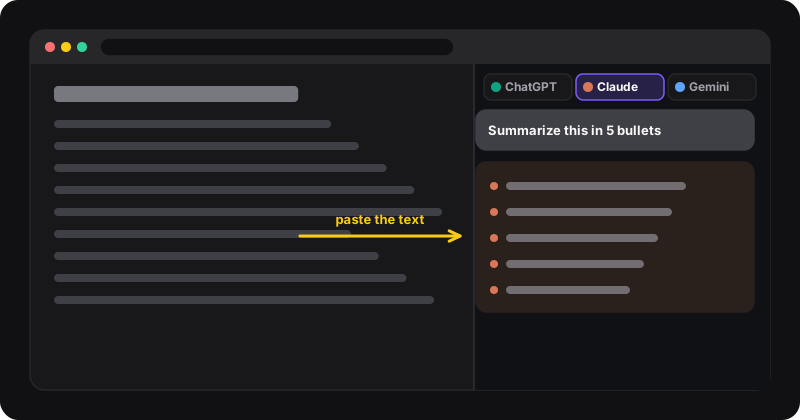
Select the article text, copy it, and paste it into ChatGPT, Claude or Gemini with a clear instruction such as “Summarize this in 5 bullet points, then list anything that needs checking.” All three do this well on their free plans. With an AI side panel, the page and the summary stay side by side.
The method that works everywhere
- Select the text you want summarized. Click at the start of the article, then Shift+click at the end. Skip menus, comments and ads: less noise means a better summary. Ctrl+A works too, but grabs everything on the page.
- Copy it with Ctrl+C (Cmd+C on a Mac).
- Open your AI: ChatGPT, Claude or Gemini, in a tab or in the side panel.
- Paste a prompt and the text (see the prompts below).
- Check the key claims against the article before you rely on them.
Why copy-paste instead of just sending the link? Some assistants can open links on some plans, but not all, not always, and not for pages behind a login or paywall. Pasting the text works every time, and you control exactly what the AI reads.
Summary prompts to copy
Quick summary
Summarize the text below in 5 bullet points. Keep numbers and names exact. Then add one line: “Worth checking:” with any claim that seems surprising. Text: [paste]
For a decision
I need to decide [what]. From the text below, give me: the main argument, the evidence, what’s missing, and what it means for my decision. Max 150 words. Text: [paste]
For learning
Explain the text below to someone new to the topic. Then give me 3 questions to test my understanding, with answers hidden at the end. Text: [paste]
More templates, with a copy button, in the free AI prompt library.
Summarize without leaving the page
The annoying part is switching tabs back and forth. With Free AI Sidebar, ChatGPT, Claude and Gemini open in Chrome’s side panel, so the article stays on the left and the summary appears on the right:
- Select and copy the article text.
- Press Ctrl+Shift+Z to open the panel.
- Pick ChatGPT, Claude or Gemini, paste your prompt and the text.
- Read the summary while scrolling the original, which makes checking easy.
Free AI Sidebar uses the official websites with your own free accounts. It doesn’t read the page by itself, so you choose exactly what you share.
Very long pages and PDFs
- Too long to paste? Split it into parts (“Part 1 of 3, just read and say OK”), then ask for the summary after the last part.
- PDFs: most assistants accept file uploads on their websites, sometimes with limits on free plans. Otherwise, open the PDF in Chrome and copy the text.
- Videos: if the video has a transcript, open it, copy it and summarize that.
Always check the summary
AI summaries are usually good, but they can drop a nuance, mix up numbers, or state something the article never said. Three quick checks:
- Numbers and names match the original
- Nothing in the summary is missing from the text
- The conclusion matches the author’s, not a generic one
For important topics, get a second summary from another assistant and compare. Here’s how to compare ChatGPT, Claude and Gemini answers.
Privacy reminder
Whatever you paste is sent to that AI provider, under their privacy terms. Don’t paste confidential work documents, private messages or personal data you’re not allowed to share.