 Free AI Sidebar
Fix
ChatGPT or Claude Sidebar Not Working in Chrome? 7 Fixes
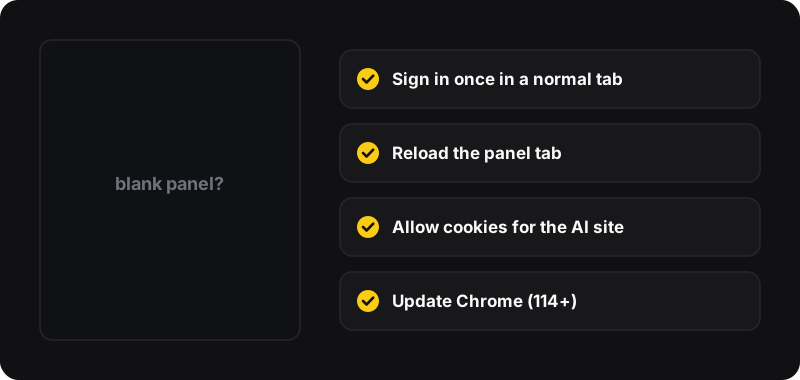
Most AI sidebar problems are sign-in or cookie issues. First, sign in to ChatGPT, Claude or Gemini once in a normal Chrome tab, then close and reopen the side panel. If it’s still blank, reload the panel, allow cookies for the AI site, update Chrome to version 114 or newer, and turn off other extensions that block content.
1. Sign in once in a normal tab
Sign-in pages, especially Google’s, don’t always behave inside a small embedded panel. The reliable path:
- Open chatgpt.com, claude.ai or gemini.google.com in a regular tab.
- Sign in there.
- Close the side panel and open it again.
The panel uses the same Chrome profile, so you’re now signed in there too.
2. Reload the panel
Right-click inside the panel and choose Reload (or Back if it’s stuck on an odd page). With Free AI Sidebar, switching to another AI tab and back also reloads it.
3. Blank or black panel after a while
Chrome saves memory by slowing down pages you’re not looking at, and some AI sites react badly to that, showing a black or frozen panel when you come back. Free AI Sidebar includes measures to keep its panels awake, but if it still happens:
- switch AI tabs and back, or close and reopen the panel,
- in
chrome://settings/performance, check that Memory Saver isn’t set to its most aggressive mode, or add the AI sites to “Always keep these sites active”.
4. Allow cookies for the AI sites
If you block third-party cookies or use strict privacy settings, the embedded sites may not keep you signed in.
- Go to
chrome://settings/cookies. - Under “Allowed to use third-party cookies”, add
chatgpt.com,claude.ai,gemini.google.comand, for Gemini sign-in,accounts.google.com. - Reopen the panel.
5. Turn off conflicting extensions
Ad blockers, privacy extensions and other AI sidebars can interfere. Open chrome://extensions, turn the others off, test, then turn them back on one by one to find the culprit. Two AI sidebars fighting for the same shortcut is a common one.
6. Update Chrome
Side panels need Chrome 114 or newer. Go to chrome://settings/help; Chrome checks for updates and asks you to relaunch.
7. The shortcut does nothing
Another extension or app may use Ctrl+Shift+Z. Go to chrome://extensions/shortcuts and set a different shortcut for the sidebar. Clicking the toolbar icon always works too (pin it via the puzzle-piece menu).
When the problem isn’t the sidebar
Sometimes the AI service itself is down or you’ve hit its limit:
- “You’ve reached your limit” or similar: that’s the free plan of that service. Switch to another AI tab, or wait.
- Errors in a normal tab too: the service is having issues. Check its status page (for example status.openai.com).
- Region restrictions: some assistants aren’t available in every country or need you to be signed in.
Still stuck?
Try a fresh Chrome profile (profile icon → Add) with only the sidebar installed. If it works there, something in your main profile, usually an extension or a cookie setting, is the cause. Getting started again? Our setup guide is how to open ChatGPT in a Chrome sidebar for free.