 Free AI Sidebar
Manual vs extension
How to Use ChatGPT, Claude and Gemini Side by Side
You can keep ChatGPT, Claude and Gemini side by side for free, using their official websites and your own accounts. By hand, open each one in its own window and tile them. Faster: a side panel extension like Free AI Sidebar puts all three in Chrome’s sidebar, one click apart, next to the page you’re working on.
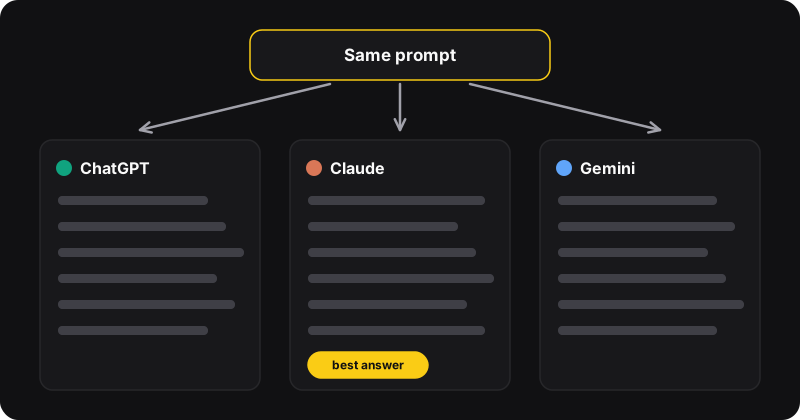
Why use more than one AI?
ChatGPT, Claude and Gemini are trained differently and often answer differently. Some people prefer one for writing, another for code, a third for anything tied to Google services. Using them together helps you:
- catch mistakes, since a fact one gets wrong is often right in another,
- pick the best draft out of three,
- keep working when one hits its free-plan limit.
All three have free plans on their websites. You don’t need an all-in-one subscription to use them together.
Method 1: tabs and windows (no install)
- Open chatgpt.com, claude.ai and gemini.google.com, and sign in to each.
- Drag each tab out into its own window.
- Tile the windows. On Windows 11, hover the maximize button and choose a three-column layout. On macOS, use the green button’s tiling options or a window manager.
- Paste the same prompt into each and compare.
Great on a big monitor for a serious comparison session. On a laptop, three columns are cramped, and you can’t see the page you’re working on anymore.
Lighter version: a tab group
Put the three AI tabs in a Chrome tab group named “AI” and collapse it when you don’t need it. You switch with a click, but you still lose sight of your page.
Method 2: all three in Chrome’s side panel
Free AI Sidebar loads the official ChatGPT, Claude and Gemini websites in Chrome’s side panel, with a tab for each at the top.
- Install Free AI Sidebar and pin its icon.
- Press Ctrl+Shift+Z (or click the icon) to open the panel.
- Sign in once in each tab: ChatGPT, Claude, Gemini.
- Ask your question in one tab, copy it, switch tabs and paste. Each tab keeps its own conversation.
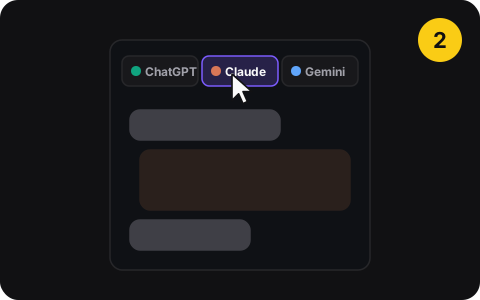
The page you’re reading stays visible on the left the whole time, which is the point: you work and ask in the same view.
Windows vs side panel
| Tiled windows | Side panel | |
|---|---|---|
| Price | Free | Free |
| See all three at once | Yes | One at a time, one click apart |
| Keep your page visible | Hard | Yes |
| Works on a laptop screen | Cramped | Yes |
| Setup | Every session | Once |
Many people combine them: the side panel for everyday questions, tiled windows for the occasional deep comparison.
A simple “three opinions” workflow
- Write the prompt once in a note, with context, task and format.
- Paste it into each assistant.
- Compare on accuracy first, then usefulness, then style.
- Ask the best one to improve its answer using the good points from the others.
The detailed method, with prompts to copy, is in how to compare ChatGPT, Claude and Gemini answers. You’ll find ready-made prompts in the free prompt library.
Free plan limits
Each service sets its own free usage limits and changes them from time to time. When you hit a limit in one, switch to another. That’s one of the practical perks of having all three a click away. If you subscribe to one of them, your paid plan works in the side panel too, since it’s your own account.