 trustreCAPTCHA
Fix
Why Do I Keep Getting reCAPTCHA? 8 Fixes That Actually Help
reCAPTCHA shows more challenges when your traffic looks unusual: a VPN or shared IP, cleared or blocked cookies, strict privacy extensions, an outdated browser, or many requests in a short time. To see fewer, stay signed in to your Google account, allow cookies on sites you trust, pause the VPN for those sites, and update your browser.
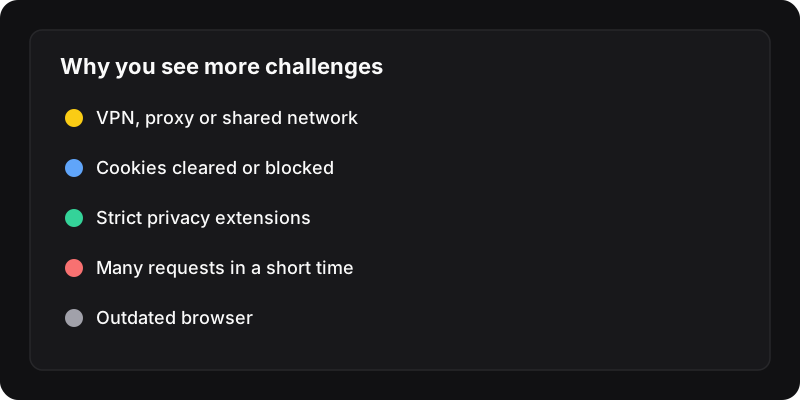
How reCAPTCHA decides to challenge you
reCAPTCHA is Google’s bot-detection service. Most of the time it decides in the background, from signals like your network, browser and behavior. If you look like a regular person, you get a simple checkbox or nothing at all. If something looks unusual, you get image challenges, sometimes several rounds. You can’t see your “score”, but you can change the signals that lower it.
1. Pause your VPN or proxy for that site
VPN and proxy IP addresses are shared by many people, and some of them are bots. Sites see a lot of traffic from those addresses, so challenges go up. Turn the VPN off for the site, switch to another server, or use your VPN’s split tunneling for trusted sites.
2. Shared or busy network?
Office, university, café and mobile-carrier networks put many users behind one IP address. If someone on the same network runs automated tools, everyone gets more challenges. Try another network (for example, your phone’s hotspot) to check whether that’s the cause.
3. Stay signed in to your Google account
Being signed in to Google in your browser is one of the signals that can help reCAPTCHA recognize you as a regular user. If you sign out of everything or browse in a fresh profile, you start from zero each time.
4. Don’t clear or block all cookies
Clearing cookies on every exit, or blocking third-party cookies everywhere, removes the history that helps. In chrome://settings/cookies, you can keep strict settings and still allow cookies for the sites you trust.
5. Check your privacy extensions
Anti-fingerprinting tools, script blockers and some ad blockers can make your browser look unusual, or block parts of reCAPTCHA so it falls back to harder challenges. Temporarily disable them on the problem site to test.
6. Update your browser
An outdated browser is a classic bot signal. In Chrome, open chrome://settings/help to update.
7. Slow down
Refreshing a page many times, opening dozens of tabs on the same site, or submitting forms very quickly looks automated. Wait a few minutes and try again at a normal pace.
8. Check your computer
If you see Google’s “unusual traffic from your computer network” message often, even at home without a VPN, run a malware scan. Some malware sends automated traffic from your connection without you knowing.
Still getting lots of challenges?
Some sites simply use stricter settings. For those, two things make life easier:
- Get better at the image challenges with a few simple rules: tips to pass reCAPTCHA image challenges faster.
- Use the audio challenge (headphones icon) if images are hard for you to see.
- Let a tool solve them for you. trustreCAPTCHA solves image challenges with an AI model that runs in your browser. See how to solve reCAPTCHA automatically.
Use solvers fairly
CAPTCHAs protect sites from spam and abuse. Use solving tools to save yourself time on normal browsing, never to automate sign-ups, spam or scraping against a site’s rules.