 Group Exporter for FB
How-to
How to Track New Members (and Who Left) in Your Facebook Group
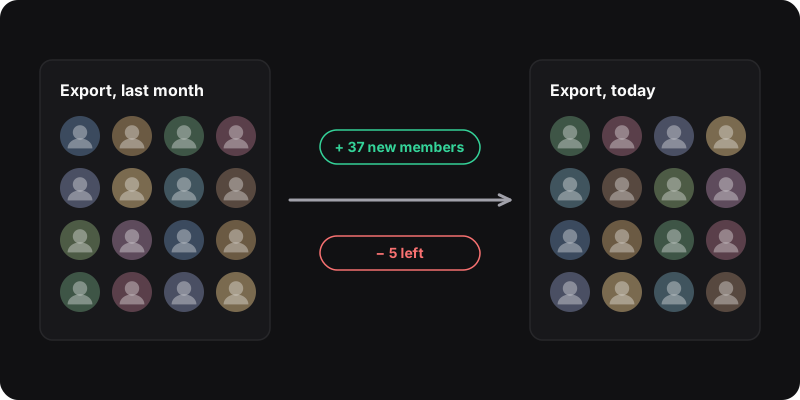
Facebook shows recent joiners under New to the group on the members page, which is enough for small, slow groups. To know exactly who joined or left between two dates, export the member list regularly (for example every Monday) and compare the two files by User Id. Our free comparison tool does that in your browser.
Why track new members?
- Welcome posts work: a weekly “welcome to our new members” post (tagging them) is one of the oldest engagement tricks for groups.
- Moderation: a sudden wave of new accounts can be a spam raid.
- Growth: knowing how many people join and leave each week tells you what’s working.
The built-in way: “New to the group”
- Open your group and click Members.
- Look at New to the group. It lists recent joiners, newest first.
- As an admin, also check the group’s insights (for groups above a certain size) for growth numbers.
Limits: you can’t easily see exactly who joined “since last Monday” in a busy group, and nothing tells you who left.
The precise way: export and compare
The idea is simple: take a snapshot of the member list on a regular day, and compare it with the previous snapshot.
- Export the members with Group Exporter for FB: open the members page, click export members, then download csv. Full steps in how to export group members.
- Name the file with the date, like
members-2026-10-05.csv, and keep it in a private folder. - Next week, export again.
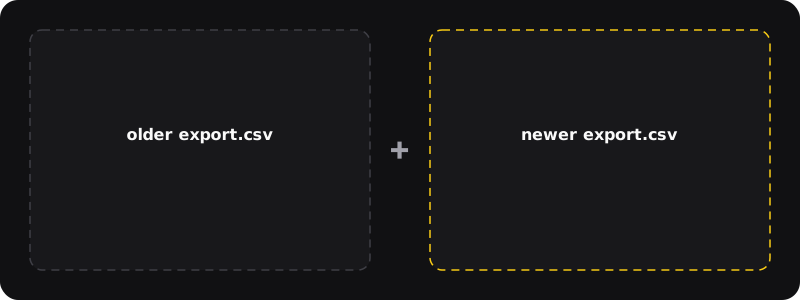
- Compare the two files. Drop them into our free member export comparison tool. It runs in your browser, nothing is uploaded, and lists who joined and who left, matched by User Id.
Prefer a spreadsheet?
Put the old export in sheet A and the new one in sheet B (IDs as text, see how to open the CSV properly). In sheet B, add a column with:
=IF(COUNTIF(A!A:A, A2)=0, "new", "")
Every row marked “new” joined since the old export. Do the same in sheet A against sheet B to find who left.
Turn the list into a welcome routine
- Every Monday, export and compare.
- Write a short welcome post tagging the new members, with the group rules and a question to answer in the comments.
- Check the new list for obvious spam profiles and remove them.
- Delete last week’s export once you’ve compared it.
How often to export?
Weekly is plenty for most groups. Exporting a very large group too often makes many requests to Facebook. Keep the default request interval (or slow it down) and avoid running exports back to back. If Facebook starts limiting requests, see export not working: fixes.
Only for running your group
Tracking members to welcome and moderate them is part of being an admin. Using the list to message people outside the group, or sharing it, is not. Facebook’s Terms restrict automated data collection, and privacy laws may apply to you. Keep exports private and short-lived.