 Group Exporter for FB
Manual vs extension
How to Export Facebook Group Members to a CSV File
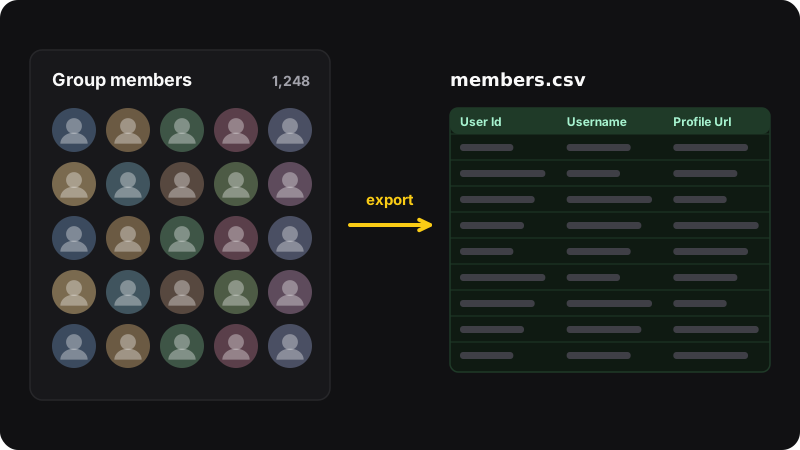
Facebook doesn’t have a built-in way to export a group’s member list. For a small group you can copy names by hand from the Members tab into a spreadsheet. For anything bigger, a browser extension like Group Exporter for FB reads the members page with your own Facebook session and saves every member it can see to a CSV file you open in Excel or Google Sheets.
Before you export: the rules
A member list is personal data: names, profile links, sometimes bios. Before exporting anything, be clear about why you need it:
- Good reasons: you run the group and want to welcome new members, keep a record for moderation, or see how the group grows.
- Bad reasons: sending unsolicited messages, adding people to mailing lists, or reselling lists. That’s spam, and in many countries it’s illegal.
Facebook’s Terms and privacy laws
Facebook’s Terms say you may not collect data from its products using automated means without its permission. Using an export tool is your decision and your responsibility. If you’re in the EU, the UK or another region with privacy laws (like GDPR), you also need a lawful reason to keep this data and must store it securely. When in doubt, export only groups you manage, and delete files you no longer need.
Method 1: build the list by hand (small groups)
- Open the group and click Members (or go to
facebook.com/groups/<group>/members). - Scroll the member list until everyone you need is loaded.
- Open a spreadsheet with columns like Name, Profile link, Joined.
- For each member, copy the name, right-click it and choose Copy link address for the profile URL, then paste both into the sheet.
Fine for 30 people. For 300, it’s an afternoon; for 3,000, it’s not realistic. Copy-pasting the whole page doesn’t work well either: you get a jumble of names, buttons and mutual-friend text with no profile links.
Method 2: export every member with Group Exporter
Group Exporter for FB is a free Chrome extension that runs in your browser with your own Facebook session. No account, no server.
- Install Group Exporter and log in to Facebook in the same Chrome profile.
- Open the group’s Members page, or paste the group link in the extension’s popup and click to open it.
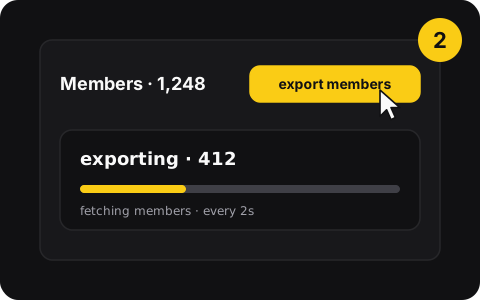
- Click export members, the button that appears next to the member count.
- Watch the counter. You can pause and continue whenever you want.
- Click download csv.
What’s in the file
One row per member, with these columns: User Id, Username, Is Verified, Friendship Status, Group Bio, Join Status Text, Extracted At, Profile Url and Avatar. There are no emails or phone numbers: Facebook doesn’t show those on member lists, and Group Exporter only saves what the members page shows you.
Useful settings
- Request interval (2 to 60 seconds): time between two requests to Facebook. Slower is less likely to be rate-limited.
- Member limit (none, 200, 500, 1k, 5k, 10k): pauses the export at that number. You can continue past it.
By hand vs Group Exporter
| By hand | Group Exporter | |
|---|---|---|
| Price | Free | Free |
| 100 members | ~30–60 minutes | A minute or two |
| Profile links | One by one | Included |
| Member limit | Your patience | None (only what Facebook shows you) |
| Works on phone | Yes | No, Chrome on a computer |
Next steps
- Open the file properly so names with accents don’t break: open a member CSV in Excel or Google Sheets.
- Compare exports over time to see who joined: track new members of your group.
- Export stuck or paused? See Facebook group export not working.